Fixing Notion's Math Rendering Issue
A few days before an exam, I was taking notes in Notion. I copied an explanation from ChatGPT. It contained equations. I pasted it in. But nothing rendered. The LaTeX sat there as plain text, dollar signs and all.
To fix it, I had to convert each equation manually. Type /math for display blocks. Wrap inline equations with $$...$$. One by one. Forty times. I gave up and switched to Obsidian.

Three months later, the same problem. This time I was importing my own markdown notes, exported from Notion itself. Notion lets you export pages as markdown, but when you bring them back in, the equations don't render. I searched for a solution. There were plenty of posts and comments from people having this problem and no fixes yet from Notion. So I decided to fix that myself.
What Notion Does (and Doesn't)
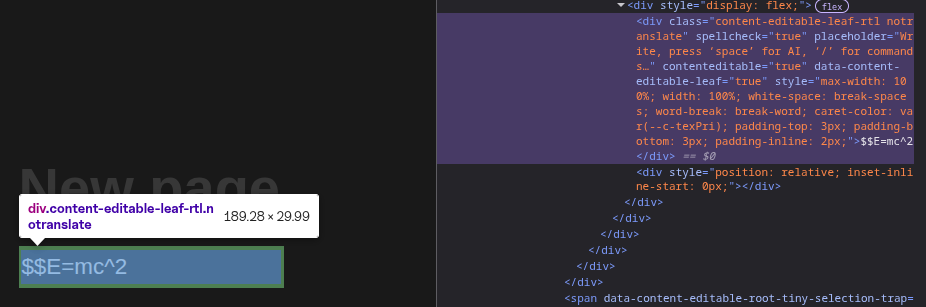
Notion has math support. Type $$E = mc^2$$ with double dollar signs and it renders inline math using KaTeX. For display equations, type /math, select the block from the command menu, and enter your LaTeX in the dialog.


The problem is that Notion only understands its own input method. The standard markdown conventions, $...$ for inline and $$...$$ for display, are not recognized. Paste text that uses them and Notion treats the equations as plain text. This is the syntax ChatGPT uses, the syntax Obsidian uses, and the syntax Notion itself produces when you export a page.
Finding the Equations
Markdown equations follow two patterns:
- Inline:
$x^2$— single dollar signs, no newlines inside - Display:
$$\int_0^\infty e^{-x^2} dx$$— double dollar signs, may span multiple lines
A single regular expression matches both:
const EQUATION_REGEX = /(\$\$[\s\S]*?\$\$|\$[^\$\n]*?\$)/;The first alternative, \$\$[\s\S]*?\$\$, matches display equations by allowing any character including newlines between the delimiters. The second, \$[^\$\n]*?\$, matches inline equations by excluding dollar signs and newlines. The | operator means either pattern will trigger a match.
Locating Equations in the DOM
Notion renders pages as a DOM tree. Each block, paragraphs, headings, lists, is a subtree, and text content lives in leaf text nodes.
document
  └─ body
      └─ div (page container)
          └─ div (block)
              └─ div (editable content)
                  └─ text node: "$x^2 + y^2 = r^2$"
To find all text nodes containing equations, the extension uses a TreeWalker, which traverses the DOM and visits only text nodes:
function findEquations() {
  const textNodes = [];
  const walker = document.createTreeWalker(
    document.body,
    NodeFilter.SHOW_TEXT,
    null,
    false
  );

  let node;
  while ((node = walker.nextNode())) {
    if (node.nodeValue && EQUATION_REGEX.test(node.nodeValue)) {
      textNodes.push(node);
    }
  }

  return textNodes;
}
This returns a list of text nodes, each containing at least one equation to convert.
Two Conversion Strategies
The conversion approach depends on the equation type.
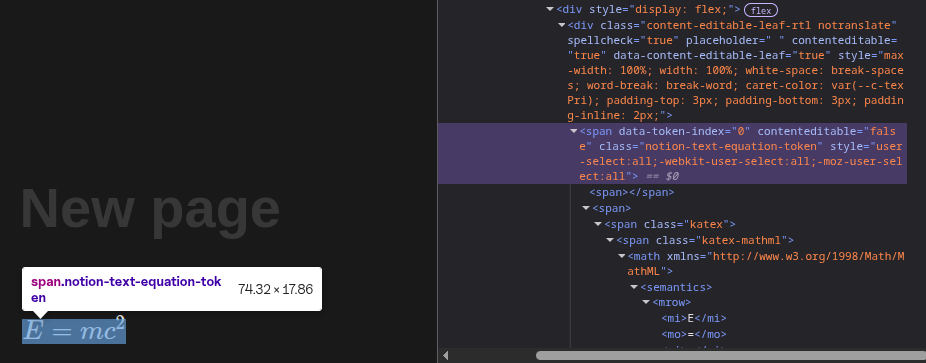
For inline equations like $x^2$, Notion already knows how to handle the double-dollar syntax. Replacing $x^2$ with $$x^2$$ is enough. Notion detects the pattern and converts it automatically.
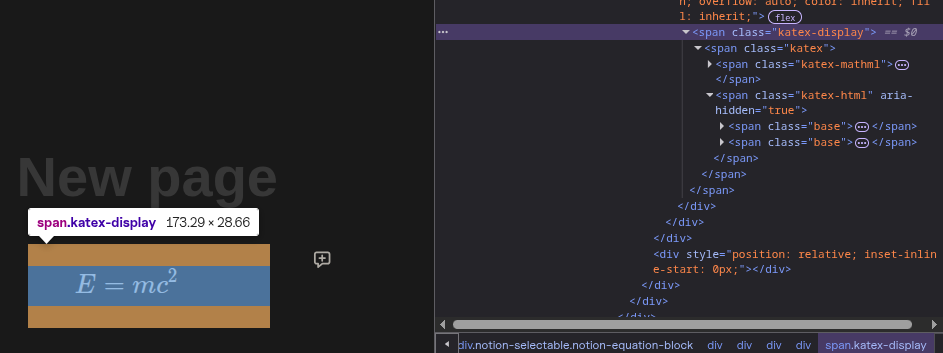
Display equations are different. Notion requires them to be their own block, a separate structural element in the page. The only way to create one is through the /math command. There is no shortcut syntax that triggers it automatically.
These two cases require separate implementations.
Finding the Editable Parent
Before any conversion can happen, the right DOM element needs to be activated.
Text nodes are not interactive. Clicking or focusing them directly has no effect on Notion's state. Notion responds to interactions with the block elements that contain text.
div (block)                  ← not editable
  └─ div (editable content)  ← THIS is what Notion watches
      └─ text node: "$x^2$"
Notion marks its editable blocks with data-content-editable-leaf="true". To activate a block, the extension walks up the DOM tree from the text node until it finds that attribute:
function findEditableParent(node) {
  let parent = node.parentElement;
  while (parent &&
         parent.getAttribute("data-content-editable-leaf") !== "true") {
    parent = parent.parentElement;
  }
  return parent;
}
If no editable parent exists, the equation is skipped.
Selecting the Text
Changing the DOM directly does not work. Notion uses React, which maintains its own representation of the UI. If the real DOM changes without React knowing, the two go out of sync and Notion overwrites the change.
Instead, the extension selects text the same way a user would, using the browser's Selection API:
function selectText(node, startIndex, length) {
  const range = document.createRange();
  range.setStart(node, startIndex);
  range.setEnd(node, startIndex + length);

  const selection = window.getSelection();
  selection.removeAllRanges();
  selection.addRange(range);
}
This creates the same selection as clicking and dragging over the text. Notion's event handlers fire and the block is ready to receive input.
Converting Inline Equations
With the text selected, converting an inline equation is straightforward. The selected text is replaced with the double-dollar syntax using execCommand:
const fullEquationText = `$$${latexContent}$$`;
document.execCommand("insertText", false, fullEquationText);
execCommand fires the same input events as typing. Notion sees the $$...$$ pattern and converts it to a rendered math element automatically.
Converting Display Equations
Display equations cannot be converted by changing syntax alone. Notion needs to create a new block, and the only way to do that is through the UI. The extension automates the same steps a user would take:
async function convertDisplayEquation(latexContent) {
  const selection = window.getSelection();

  selection.deleteFromDocument();
  await delay(TIMING.FOCUS);

  document.execCommand("insertText", false, "/math");
  await delay(TIMING.DIALOG);

  dispatchKeyEvent("Enter", { keyCode: 13 });
  await delay(TIMING.MATH_BLOCK);

  if (isEditableElement(document.activeElement)) {
    insertTextIntoActiveElement(document.activeElement, latexContent);
  }

  await delay(TIMING.DIALOG);
  await delay(TIMING.POST_CONVERT);
}
Each step includes a delay because Notion's UI is asynchronous. The command palette does not appear the instant /math is typed. The dialog does not open the instant Enter is pressed. React needs time to render each state change. The delays, 50ms for focus, 100ms for dialogs, 300ms after conversion, are the minimums found through trial and error.

Handling Errors
Not all LaTeX is valid. When Notion cannot parse an equation, it shows an error alert inside the dialog and disables the "Done" button. If the converter does not account for this, it stalls indefinitely waiting for a dialog that will never close.
To solve this, after inserting LaTeX, the extension checks for the alert:
const hasError = document.querySelector('div[role="alert"]') !== null;

if (hasError) {
  dispatchKeyEvent("Escape", { keyCode: 27 });
}
If an error is detected, the converter presses Escape to dismiss the dialog and moves on. The equation stays as plain text, but the rest of the page converts normally.
There is a second failure case. Between scanning the page and selecting a node, Notion sometimes re-renders and the node no longer exists. Before converting, the extension verifies the selection contains what it expects:
const selection = window.getSelection();
if (!selection.rangeCount || selection.toString() !== equationText) {
  return;
}
If the selection does not match, the equation is skipped and the page is rescanned from the top.
Hiding the UI
Dialogs flash on screen during conversion. To avoid the visual noise, the extension injects a small CSS rule to make them invisible while keeping Notion's logic intact:
injectCSS(
  'div[role="dialog"] { opacity: 0 !important; transform: scale(0.001) !important; }'
);
The dialogs still exist and all events still fire. They are just not visible. When conversion finishes, the injected style is removed.
The Main Loop
while (true) {
  const equations = findEquations();

  if (equations.length === 0) break;

  const node = equations[0];
  const match = node.nodeValue.match(EQUATION_REGEX);

  if (match && match[0]) {
    await convertSingleEquation(node, match[0]);
  }
}
The loop scans the page, takes the first equation it finds, converts it, and starts over. It processes one equation at a time rather than batching them. Converting an equation can cause Notion to re-render nearby content, which invalidates any previously collected node references. Rescanning from the top is slower, but it avoids that problem entirely. The loop exits when no equations remain.
Try It
The extension is on GitHub:
github.com/voidCounter/noeqtion.
Firefox users can install it directly from here.
For Chrome, load it as an unpacked extension. Open a Notion page with LaTeX equations. Press Ctrl+Alt+M.
The whole thing is about 300 lines with no external dependencies.